February 24, 2026
·
Updated October 28, 2026
·
15 min read
Headless CMS SEO vs Traditional CMS: Pros, Cons, Risks
A comparison of headless and traditional CMS setups for SEO: what each one handles by default, how rendering mode decides indexing risk, what Chrome UX Report data shows about Core Web Vitals by platform, the SEO requirements to check in any CMS, and a migration checklist. Checked against Google Search Central and each vendor's documentation in October 2026.

Short answer: neither architecture ranks better on its own. Google indexes what ends up in the rendered HTML, so what matters is whether every page ships complete HTML with a stable URL, a title, a canonical tag, a place in the sitemap and a working redirect when it moves, and whether someone on your team owns each of those jobs. A traditional CMS such as WordPress, Webflow or Shopify handles most of them out of the box. A headless CMS such as Contentful, Sanity or Strapi stores the content, and your front end (often Next.js) has to build the rest.
So the decision is mostly about people, not platforms. Go headless when you have developers who will own rendering and SEO plumbing, and you need the same content on more than one site or app. Stay traditional when a small team needs to publish without engineering help. This guide covers how rendering mode sets your indexing risk, what real-world Core Web Vitals data shows by platform, the SEO requirements any CMS has to meet, and how to migrate without losing rankings.
Headless vs traditional CMS: what changes for SEO
A traditional CMS stores your content and also renders the pages: WordPress builds HTML from your theme, Webflow publishes the pages you design, and Shopify renders your theme’s templates. A headless CMS only stores and serves content over an API. Strapi, for example, describes itself in its documentation as an open-source headless CMS with REST and GraphQL APIs. A separate front end fetches that content and turns it into pages.
Google doesn’t care which one you use. It cares about the HTML it receives and renders. What changes is who builds the SEO plumbing:
| SEO job | Traditional CMS | Headless CMS |
|---|---|---|
| Rendering crawlable HTML | Done by the platform | Your front end; depends on rendering mode |
| Titles and meta descriptions | Built-in fields or an SEO plugin | Fields you add to the content model, rendered by your code |
| URLs and redirects | Slug fields and a redirect manager | Routing in the app; redirects in the framework, host or CDN |
| XML sitemap and robots.txt | Generated automatically | Generated by your front end |
| Structured data | Plugin, app or custom code | Templates fed from content fields |
| Preview that matches production | Usually built in | A preview environment you build and maintain |
Every cell in the headless column is work someone has to build, test and keep working through upgrades. That’s the real cost of headless SEO: nothing is harder in principle, but nothing is done for you.
Rendering mode decides most of your indexing risk
Google processes JavaScript pages in three phases: crawling, rendering and indexing. Pages that return a 200 status go into a render queue, where, according to Google’s JavaScript SEO basics, a page “may stay on this queue for a few seconds, but it can take longer than that.” Google can render JavaScript, but it still recommends server-side rendering or pre-rendering, because it’s faster for users and crawlers and not every bot can run JavaScript.
Traditional platforms serve server-rendered HTML by default, so rendering mode only becomes a decision when you go headless. That’s where most headless SEO problems start.
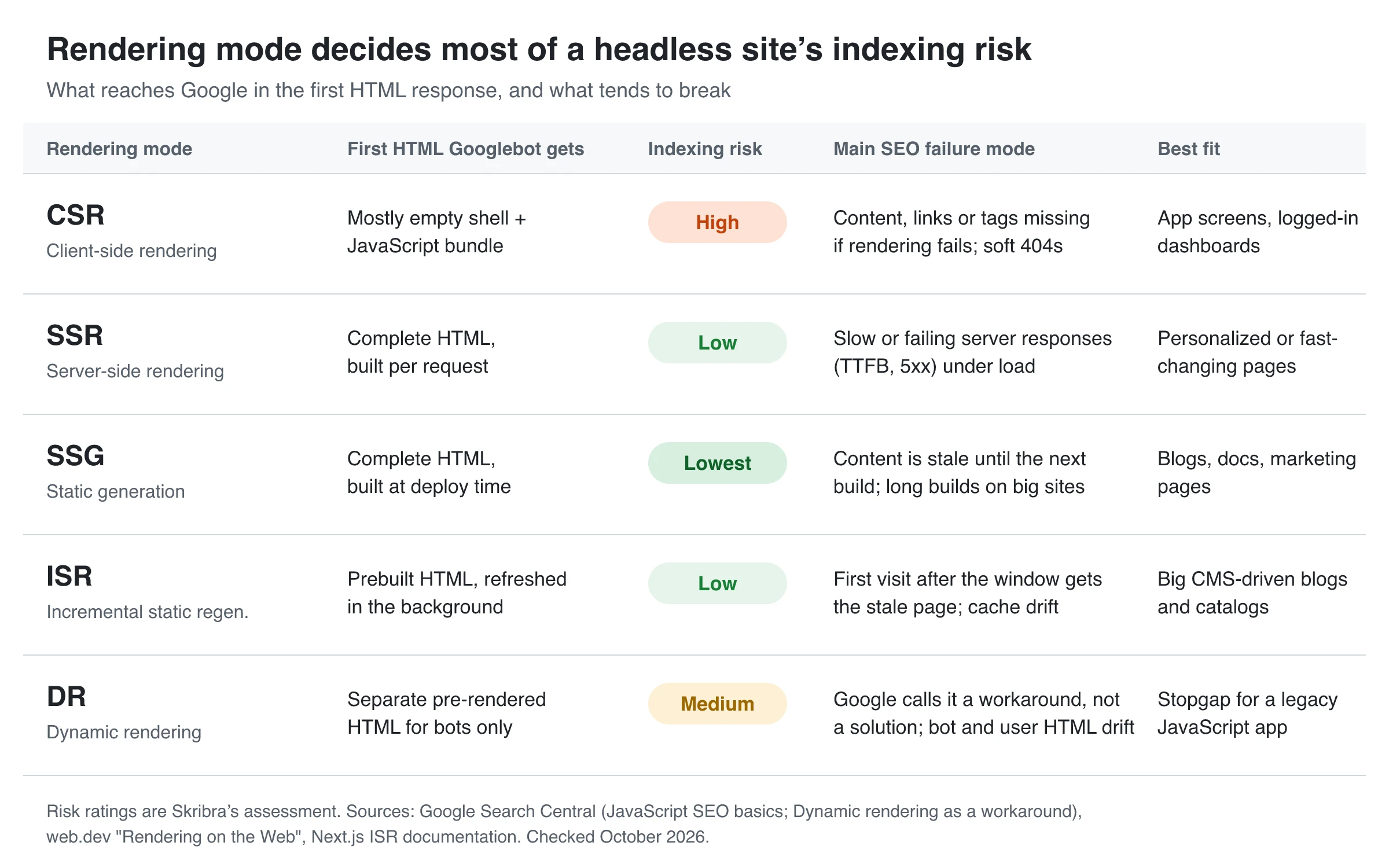
For pages you want to rank, the safe defaults are static generation or ISR, with server rendering for pages that change on every request. Two details are worth knowing. With ISR, the Next.js docs explain that the first request after the revalidation window still gets the cached, stale page while a fresh one generates, so use on-demand revalidation (revalidatePath) if edits must go live at once. And dynamic rendering, serving bots a separate pre-rendered version, is now a workaround and not a recommended solution in Google’s words.
Whichever mode you pick, Google’s JavaScript guidance has four rules that headless builds break most often. Make links real <a href> elements, because that’s the only kind Google follows. Don’t rely on JavaScript to remove a noindex from the original HTML, because Google may skip rendering a page that says noindex. Don’t use JavaScript to change the canonical tag to a different URL than the one in the original HTML. And use the History API for routes, not URL fragments. Our JavaScript SEO glossary entry covers the basics, and this Prismic live-coding session applies them to a real headless build:
Core Web Vitals: what real-world data shows
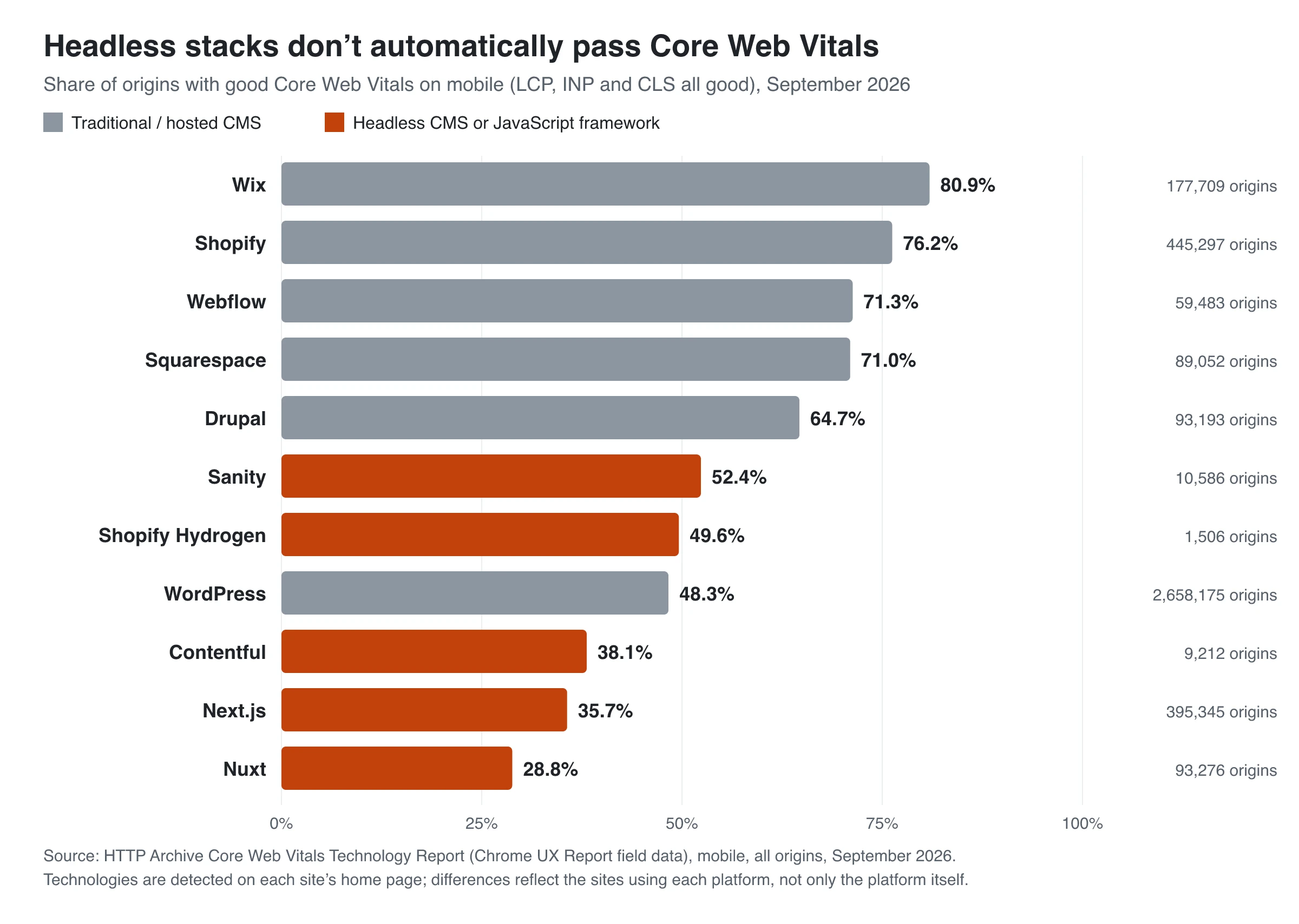
Headless is often sold as the faster option. Field data doesn’t back that up as a default. The HTTP Archive Core Web Vitals Technology Report joins Chrome UX Report data from real Chrome users with the technologies detected on each site. In September 2026, hosted traditional platforms had the highest share of origins with good Core Web Vitals on mobile, and the JavaScript frameworks and headless CMSs had some of the lowest.
| Platform | Good CWV (all three) | Good LCP | Good INP | Good CLS | Good TTFB |
|---|---|---|---|---|---|
| Shopify | 76.2% | 87.7% | 86.7% | 92.4% | 83.8% |
| Webflow | 71.3% | 78.6% | 88.0% | 93.6% | 73.1% |
| Sanity | 52.4% | 66.8% | 75.8% | 85.9% | 57.8% |
| WordPress | 48.3% | 55.4% | 90.3% | 87.3% | 22.9% |
| Contentful | 38.1% | 60.9% | 70.3% | 68.4% | 44.6% |
| Next.js | 35.7% | 53.5% | 59.7% | 73.5% | 45.6% |
Mobile, all origins, September 2026. Source: HTTP Archive Core Web Vitals Technology Report.
Read these numbers as a picture of how each platform is typically deployed, not as a verdict on the software. The report credits a whole site’s experience to the technologies found on its home page, and a typical JavaScript app does far more work in the browser than a typical brochure site. Still, the breakdown lines up with each architecture’s usual weak spot:
- WordPress sites mostly pass INP but struggle with server response time: only 22.9% have a good mobile TTFB. Look at hosting, page caching and server-side theme and plugin work first.
- Next.js and Contentful sites trail on INP and CLS, which points at client-side JavaScript, hydration and late-loading components rather than at the CMS.
- Shopify’s own headless stack, Hydrogen, passes less often than standard Shopify sites (49.6% vs 76.2%). On the same commerce platform, going headless didn’t bring speed by default.
Google’s Core Web Vitals documentation defines good as LCP within 2.5 seconds, INP under 200 milliseconds and CLS under 0.1, and says good scores align with what its core ranking systems seek to reward. If speed is your reason to go headless, budget for the work it takes: caching, image handling, a JavaScript budget and field monitoring.
SEO requirements to check in any CMS
Whatever you pick, check these before you sign up. In a traditional CMS, look for each one in the product. In a headless build, add it to the spec. If you’re auditing an existing site, our CMS detector tells you what a site runs on, and our guide to technical SEO explains why each item matters.
| Requirement | WordPress | Webflow | Shopify | Headless (Contentful, Sanity, Strapi + front end) |
|---|---|---|---|---|
| Server-rendered HTML | Yes | Yes | Yes | Only with SSR, SSG or ISR |
| Title and meta description per page | Usually via an SEO plugin | Page settings; CMS fields on Collection templates | Per product, collection, page and post | Fields you add to the content model, such as Strapi’s seo component |
| XML sitemap | Core /wp-sitemap.xml since 5.5 |
Auto-generated | Auto-generated sitemap.xml |
You build it, for example Next.js sitemap.ts |
| Canonical tags | SEO plugin or theme | Global canonical setting | Theme output | Generated by your templates |
| 301 redirects | Plugin or server rules | Site settings, bulk CSV import | URL redirects, CSV import | Framework, host or CDN config |
| Structured data | Plugin or theme code | Custom code | Theme or app | Templates fed from content fields |
Checked against the WordPress sitemaps announcement, Webflow’s site-level SEO guide and page settings lesson, Shopify’s sitemap and redirect help pages, the Strapi SEO plugin, Sanity’s SEO course and the Next.js metadata docs, October 2026.
Beyond the table, check four things that cause trouble later:
- One canonical URL per piece of content. Archives, filters, tracking parameters and alternate routes all create duplicates. Each item should have one URL that its canonical URL tag points to.
- Per-page indexing control. Editors need a way to noindex thin pages, and staging needs a block that can’t leak into production.
- Redirect capacity. Webflow has no hard limit but recommends keeping to 1,000 redirects, because each rule is added to a file browsers download. Shopify allows up to 100,000 on standard plans and 20,000,000 on Plus.
- Preview that matches production. If editors preview a different rendering path than the live site, they can’t catch broken output before it ships.
Headless CMS SEO: pros, cons and common failures
Headless gives you full control of the HTML and full responsibility for it.
Where headless helps SEO
- Rendering per page type. Static generation for articles, server rendering for fast-changing pages, client-side rendering only behind a login.
- Structured content. SEO fields, author data and FAQs live in typed fields, so templates can generate titles, structured data and internal links consistently across thousands of pages.
- One source, many outputs. The same content can feed several sites, apps and locales without copy-paste.
- No plugin stack. Every tag on the page comes from your code, so nothing else prints a second canonical or schema block.
Where headless hurts SEO
- Nothing exists until someone builds it. Sitemaps, redirects, canonicals, robots rules, hreflang and preview are all project work, and each one breaks if no one owns it.
- Editors lose direct control. Changing a title template or adding a redirect can need a developer and a deploy.
- More moving parts. The CMS, the framework, the host and the CDN can each change status codes, headers or HTML, so a framework upgrade can change SEO output without anyone editing content.
Failures to test for
- Client-only pages. A route that fetches its content in the browser serves Google an empty shell first. Check the rendered HTML in Search Console’s URL Inspection tool.
- Metadata timing. On dynamically rendered pages, Next.js streams metadata after the page starts rendering and only waits for it for bots on its HTML-limited list, such as Bingbot and Twitterbot. Prerendered pages resolve metadata at build time. Confirm the title and canonical appear in the HTML that each crawler you care about actually gets.
- Sitemaps built from the CMS alone. If your sitemap lists CMS entries, it can miss route-only pages such as category hubs, and it can list drafts that don’t resolve yet. Generate it from the same route list that builds the site.
- Hard-coded internal links. Link fields that store raw URLs break when slugs change. Store references to entries and let templates build the URL. Before you change a slug at all, check when a slug change is worth the redirect.
- Preview and staging leaks. Preview deployments that are indexable, or noindex logic that fires in production too. Each new host needs its own rules; see keeping SEO consistent across subdomains and microsites.
For the specific Next.js and Vercel settings behind these problems, see our guide to why a page isn’t indexed.
Traditional CMS SEO: pros, cons and common failures
A traditional CMS trades flexibility for defaults that work on day one.
Where a traditional CMS helps SEO
- Server-rendered HTML by default, so rendering is rarely the problem.
- SEO basics built in or one plugin away: title and description fields, sitemaps, canonical tags and redirect managers.
- Editors work without developers. Marketing can publish, fix a title or add a redirect the same day.
- Known problems have known fixes, thanks to large communities and documentation.
Where a traditional CMS hurts SEO
- Plugin stacking. A theme and two plugins can each print a canonical tag or a schema block, and the duplicates contradict each other.
- Page weight and server time. Heavy themes, page builders and third-party scripts add up, and WordPress’s mobile TTFB pass rate above shows how often server response time suffers.
- Duplicate archive pages. Tag, category, author and date archives repeat the same posts unless you decide which ones deserve indexing.
- Platform limits. Webflow can’t give a CMS Collection and a static page folder the same slug, so one directory can’t mix static and CMS pages. Shopify generates robots.txt for you; you can customize it through
robots.txt.liquid, but Shopify Support doesn’t help with those edits.
Which should you choose?
Pick the setup your team can run every week, not the one that demos best.
| Your situation | Better fit | Why |
|---|---|---|
| Small marketing team, no dedicated developers | Traditional (WordPress, Webflow) | Editors control SEO fields and redirects themselves |
| Online store on standard themes | Shopify | Sitemaps, redirects and SEO fields come built in |
| Same content on several sites, apps or locales | Headless | One content model feeds every output |
| Thousands of templated pages from structured data | Headless, statically generated | Templates enforce titles, schema and links at scale |
| Developers available, but editors want the WordPress UI | WordPress as a headless back end | The REST API serves content to a separate front end |
| Custom storefront on Shopify | Shopify Hydrogen | Shopify’s headless toolkit; since version 2026-10 your front end builds sitemaps and meta tags (see the migration notes below) |
If you’re unsure, start traditional. Moving to headless later is a normal migration. Running headless without the people to maintain it means SEO bugs nobody notices until traffic drops.
Migrating between CMS types without losing rankings
Most SEO damage happens during the move, not because of the platform you move to. Google’s site move guide says to expect temporary ranking fluctuation, and a medium-sized site can take “a few weeks or more” for Google to process the new URLs. This checklist follows that guide, with the steps headless moves usually add.
Before launch
- Map every old URL to its new URL, and keep URLs unchanged wherever you can. Pull the list from your sitemaps, server logs, analytics and Search Console’s links report, plus images and files. A crawl of the old site (part of any technical SEO audit) catches pages missing from the sitemap.
- Carry over the on-page signals. Titles, meta descriptions, headings, structured data, alt text and internal links have to be migrated as data. A new content model won’t fill them in for you.
- Compare rendered HTML, template by template. For each page type, check the old and new versions with the URL Inspection tool or the Rich Results Test, and make sure content, links, canonical and robots tags appear in the rendered HTML.
- Decide where redirects live. Pick one layer (host, CDN or framework) so rules don’t stack into chains, and test them on staging.
At launch
- Use server-side permanent redirects, straight to the final URL. Avoid chains, and don’t send many old URLs to the home page or other unrelated pages.
- Return 404 or 410 for content you removed on purpose.
- Give every new page a self-referencing canonical, and remove any noindex used while building.
- Update internal links to the new URLs instead of relying on redirects, and submit the new sitemap in Search Console.
- Load redirects in bulk if your platform supports it. Webflow and Shopify both import redirect lists from CSV.
After launch
- Keep redirects for at least a year, as Google recommends, and longer if you can.
- Watch Search Console’s Page indexing and Sitemaps reports and your server logs for 404s, 5xx errors and Googlebot activity. Old URLs should drop out as new ones take over.
- Check headless platform defaults. Hydrogen 2026-10, the current version of Shopify’s headless toolkit, no longer includes the
getSitemap()orgetSeoMeta()helpers, so its migration guide has you write your own sitemap queries and return meta tags from your framework. Shopify’s legacy Hydrogen SEO docs also note that Oxygen overrides robots.txt on shareable non-production deployments to block all crawlers. Make sure your production domain serves the sitemap and robots.txt you expect.
If pages still aren’t indexed a few weeks after launch, work through the indexing troubleshooter linked above, status by status.
Publishing SEO content to a headless or traditional CMS
Content still has to reach your CMS with its SEO fields intact. Skribra publishes finished articles to both kinds of setup:
- Traditional platforms: directly to WordPress (through Application Passwords and the REST API), Webflow CMS collections (with field mapping) and Shopify store blogs, with each post’s slug and featured image included. On WordPress and Shopify, re-publishing an article with the same slug updates the existing post instead of creating a duplicate. Teams that review drafts before they go live can also send articles to a Notion database.
- Headless sites, push: a webhook sends each article as JSON to your HTTPS endpoint, with an access token you verify. The payload carries the title, slug, HTML and Markdown body, meta description, image, tags and related articles. It also carries lifecycle fields (
redirect_towith a redirect type,noindexandunpublished), so your front end can return the right redirect, robots tag or 404 when an article is consolidated or removed. - Headless sites, pull: the Skribra API lets your server or build fetch published articles instead of storing copies. Each article comes back with its HTML body, plus its table of contents, related articles and JSON-LD as separate fields for your templates to place. Unpublished and redirected articles are filtered out, and revalidating hourly or syncing changes with
updatedSincekeeps the site current.
The bottom line
- Neither setup ranks better by default. Complete server-rendered HTML, stable URLs and correct redirects do.
- Headless moves SEO into code. Choose it when developers will own rendering, sitemaps, canonicals and redirects for the long haul.
- Traditional keeps SEO in the editor’s hands. Choose it when a small team needs to publish and fix things without a deploy.
- If you go headless, default to static generation or ISR for pages that should rank, and test the rendered HTML of every template before launch.
- Treat a migration as the riskiest part. Map every URL, redirect once, keep redirects for at least a year and watch Search Console for the first few weeks.
Frequently Asked Questions
- Is a headless CMS better for SEO than a traditional CMS?
- Not by default. Google indexes the HTML it renders, so a headless site with server-side rendering or static generation and correct canonicals, sitemaps and redirects can rank as well as any WordPress site. Without those pieces it does worse. Headless gives you more control, but you have to build what a traditional CMS gives you out of the box.
- Can Google index a client-side rendered website?
- Usually, yes. Google renders JavaScript, but pages wait in a render queue first, and content or links that appear only after JavaScript runs are easier to miss. Google still recommends server-side rendering or pre-rendering, partly because not every crawler runs JavaScript. For pages you want to rank, send the content in the initial HTML.
- What is the best CMS for SEO?
- The one your team can run correctly every week. WordPress, Webflow and Shopify cover the SEO basics with little engineering, while a headless CMS such as Contentful, Sanity or Strapi suits teams with developers and content shared across several sites or apps. Either way, check for server-rendered HTML, editable titles and descriptions, canonical tags, an automatic sitemap and a redirect manager.
- Will migrating to a headless CMS hurt my rankings?
- Some temporary fluctuation is normal, and Google says a medium-sized site can take a few weeks or more to settle after a URL change. Lasting losses usually come from missing redirects, dropped titles and structured data, or templates that render content only in the browser. Map every URL, use direct permanent redirects, compare rendered HTML before launch and keep redirects for at least a year.
- Can I use WordPress as a headless CMS?
- Yes. The WordPress REST API exposes your content to a separate front end, such as a Next.js site, while editors keep using the WordPress admin. You then lose what the theme and SEO plugins did for page output, so the front end has to generate titles, canonicals, sitemaps, structured data and redirects itself.
Publish to Whatever CMS You Choose
Headless or traditional, Skribra writes SEO articles and publishes them to WordPress, Webflow, Shopify or Notion directly, or to any custom front end through a webhook or the REST API, with slugs and featured images included.
Plans start at $19/month for 5 articles, and every plan comes with a 3-day free trial.
Written by
Skribra
This article was crafted with AI-powered content generation. Skribra creates SEO-optimized articles that rank.
Share: