October 22, 2026
·
Updated October 28, 2026
·
17 min read
How to Run a Technical SEO Audit (Tools and Checklist)
A step-by-step technical SEO audit: the access to get first, the site-wide files to check, a crawl set up to match Googlebot, how to confirm issues in Search Console, how to rank them and how to write tickets developers can act on. Tool limits and prices were checked on vendor sites, and every Google behavior against Google's own documentation, in October 2026.

A technical SEO audit checks whether search engines can crawl, render and index your pages, and finds what stops them. You run it in six steps: get access, check robots.txt and sitemaps, crawl the site the way Googlebot Smartphone sees it, confirm each finding in Google Search Console, rank the findings, and turn them into developer tickets with the proof attached.
On a small site you can do the whole audit with free tools: Search Console, PageSpeed Insights and the free version of Screaming Frog (up to 500 URLs per crawl). This guide covers the setup for each step, what the main audit tools cost as of October 2026, what changes on Wix, Squarespace, Webflow and Shopify sites, and a checklist and ticket template you can copy. If you're new to the topic, start with what technical SEO is and how it works.
The technical SEO audit process at a glance
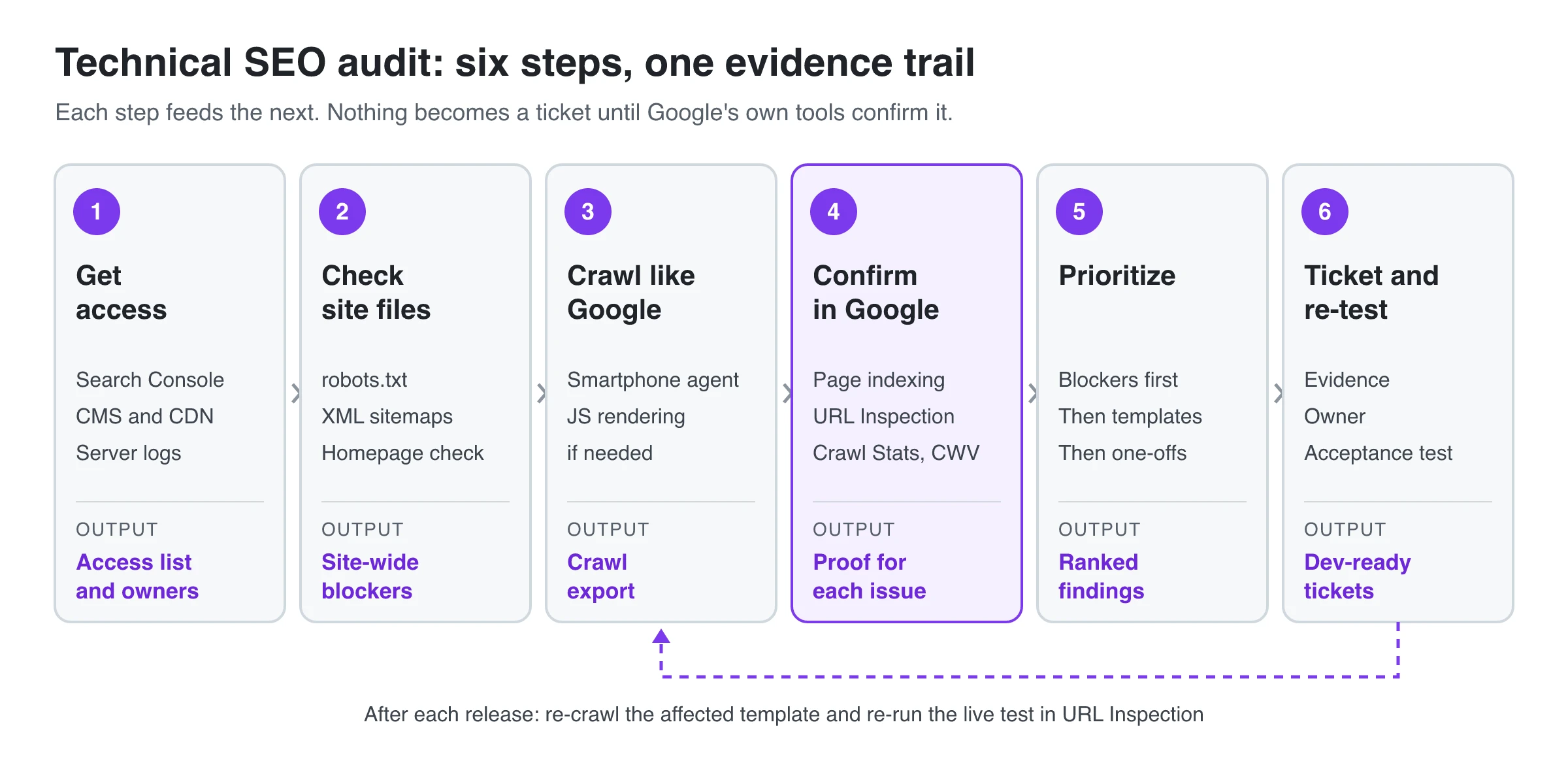
Each step produces something the next one needs. Keeping crawler findings and Google’s own reports apart stops you filing tickets for issues Google never sees.
Google Search Central’s own walkthrough covers the same ground in video form:
Technical SEO audit tools and what they cost
You need three kinds of tool: Google’s own reports (free, and the final word on what Google sees), one crawler, and a speed test. A paid suite is optional. It mainly adds bigger crawls, scheduled re-crawls and history. Technical fixes are only one way to grow search traffic; our guide to AI tools to increase organic traffic maps the others.
| Tool | Role in the audit | Free option | Paid (as of October 2026) |
|---|---|---|---|
| Google Search Console | Indexing status, URL Inspection, Crawl Stats, Core Web Vitals from real users | Free | None |
| PageSpeed Insights | Real-user (CrUX) data plus a Lighthouse lab test for one URL | Free | None |
| Screaming Frog SEO Spider | Desktop crawler | Up to 500 URLs per crawl; JavaScript rendering, saving crawls and crawl configuration are restricted | £199 per license per year ($279 on its US-dollar price) |
| Ahrefs Site Audit | Cloud crawler | Ahrefs Free: 5,000 crawl credits per verified project per month | Lite $129/month with 100,000 crawl credits |
| Semrush Site Audit | Cloud crawler | Free account: 100 pages per month | SEO plan $139/month ($117.33/month billed yearly) |
| SE Ranking Website Audit | Cloud crawler | 14-day trial, no card | Core $129/month ($103.20/month billed yearly), 250,000 audit pages per month |
| Skribra free tools | Homepage check, sitemap validation, robots.txt generation | Free, no sign-up | None |
Prices and limits come from each vendor’s own pages (Ahrefs Free, Semrush’s Site Audit help, SE Ranking pricing) in October 2026.
How to choose the crawler:
- Under 500 URLs and the HTML comes from the server: the free version of Screaming Frog is enough.
- Bigger site, or links and content added by JavaScript: you need JavaScript rendering. That means a paid Screaming Frog license or a cloud suite that renders JavaScript. Semrush’s help page lists JavaScript rendering only for its Guru and Business SEO Toolkit tiers, so check which current plan includes it before you buy.
- You already pay for Ahrefs, Semrush or SE Ranking: use its auditor. Scheduled re-crawls that flag new issues are the main thing a cloud tool adds over a desktop crawl.
What Skribra’s free audit checks, and what it doesn’t
Skribra’s free technical SEO audit is a quick first pass, not a crawler. It fetches the homepage of the domain you enter (a full URL is cut down to its domain), plus robots.txt, and checks whether the http:// version redirects to https://. It runs 30 checks on the HTML the server returns, including canonical, meta robots, X-Robots-Tag, title, hreflang, headings, alt text, security headers, robots.txt rules and structured data, and shows a PageSpeed Insights mobile run when Google returns one.
Two limits matter. It doesn’t run JavaScript, so tags or content a script adds in the browser won’t be seen. And it checks one page: template problems on product, category or blog pages need a crawler. Use it to catch a staging noindex, a wrong canonical or a broken HTTPS redirect in seconds, then move on to the crawl.
Step 1: Get access before you crawl
Settle the scope and the access first, so every finding can be proven. You’re testing two gates: crawlability (can a crawler fetch the URL and the files it needs?) and indexability (is the page allowed into the index?). Without access you can’t show which gate failed.
Write the scope down: which hosts, subdomains and folders are in, and which are out (staging, logged-in areas, internal tools). Then name who owns each step that needs permission: adding a DNS record, exporting Search Console data, pulling server logs and approving robots.txt or sitemap changes. Audits stall when the crawl is ready but the last approval isn’t.
Verify a Domain property in Search Console
Use a Domain property, verified with a DNS TXT record. It covers every protocol and subdomain, so http, https, www and other hosts report in one place, and it gives you the Crawl Stats report for the whole domain. Add a URL-prefix property only if you also need a narrower view of one host or folder. The Search Console setup guide walks through property types, verification and user permissions.
Access checklist
- Search Console with Full or Owner access, so you can see every report and request validation.
- Server logs, or someone who can export them, to see what Googlebot actually requested.
- CMS or admin access, or a developer contact, to inspect templates, canonicals and metadata at the source.
- CDN and firewall settings, so your crawler isn’t rate-limited or blocked partway through.
- Credentials or rules for staging and logged-in areas, so you don’t crawl a login wall by accident.
- DNS access, or its owner, for verification and emergency changes.
- A named approver for robots.txt and sitemap changes. Both files can remove whole sections from search, so changes need a second pair of eyes.
Step 2: Check robots.txt, sitemaps and the homepage
Site-wide files go first, because one bad line can block or hide thousands of pages. These checks take minutes.
robots.txt
Open https://yourdomain.com/robots.txt in a browser and note the HTTP status. Google’s robots.txt documentation explains how each response is handled:
- 4xx (except 429): Google treats the site as if there were no robots.txt and crawls everything.
- 5xx: Google stops crawling the whole site for the first 12 hours, then uses the last cached copy for up to 30 days. A robots.txt that errors is a site-wide crawl problem, not a small one.
- Size: Google reads only the first 500 KiB. Rules after that are ignored.
- Caching: Google usually caches the file for up to 24 hours, so a fix doesn’t take effect instantly.
Then read the rules. Look for a Disallow: / left over from staging, blocked folders that hold pages you want in search, and blocked CSS or JavaScript files that Google needs to render the page. If the file is a mess, rebuild a clean one with the robots.txt generator and compare.
Remember what robots.txt can’t do. It controls crawling, not indexing. Google says a blocked URL can still be indexed if other pages link to it, and Google can’t see a noindex on a page it isn’t allowed to fetch. To keep a page out of search, allow crawling and use noindex in a meta tag or an X-Robots-Tag header.
XML sitemaps
Find the sitemap (usually listed in robots.txt or at /sitemap.xml) and run it through the sitemap validator. It counts URLs, follows nested sitemap indexes and flags relative URLs, duplicates and missing lastmod dates. Google’s sitemap rules to check against:
- Each sitemap file can hold up to 50,000 URLs or 50MB uncompressed. Bigger sites split it and use a sitemap index.
- URLs must be absolute (
https://example.com/page, not/page). - Google ignores
priorityandchangefreq. It useslastmodonly when it’s consistently accurate.
Keep the sitemap export for Step 3. Every URL in it should return 200, be indexable and be its own canonical. Any URL that doesn’t is a finding, and any indexable page missing from it is a question to ask.
Homepage quick check
Run the homepage through the free audit described above, or view its source and the response headers in your browser’s developer tools. You’re looking for the expensive mistakes: a noindex meta tag or X-Robots-Tag header, a canonical pointing at another domain or at staging, http that doesn’t redirect to https, or a non-200 status. If the homepage has one of these, check the templates next, because the same code usually runs on every page.
Step 3: Crawl the site the way Google does
A technical audit is only as good as the crawl behind it. Set up your main crawl to match how Google discovers and evaluates pages, or you’ll spend time on issues that never affect indexing.
Start with the user agent. Google uses the mobile version of a site’s content, crawled with the smartphone agent, for indexing and ranking. Crawl with a Googlebot Smartphone user agent and with your real robots.txt and login rules in place.
Next, decide whether you need JavaScript rendering. Google crawls, then renders, then indexes pages that rely on JavaScript. If your navigation, internal links, canonicals or main content are added by scripts, an HTML-only crawl will miss or misread them. View the page source (not the inspector) of a key template: if the content and links are there, an HTML crawl is fine. Sites on a headless CMS should check this first; here’s how rendering mode affects indexing on headless sites.
Keep robots.txt respected for the main crawl. If you want to see what robots.txt hides, run a second crawl that ignores it, label it diagnostic and keep its data separate.
Screaming Frog setup
Most of these settings need a paid license (see the free-version limits in the tool table above). The free version runs the default crawl, capped at 500 URLs.
- Choose the rendering mode. Leave it on text-only HTML for server-rendered sites. Switch to JavaScript rendering when links or content depend on scripts. Screaming Frog then renders pages in headless Chromium and reads the rendered HTML.
- Set the user agent to Googlebot Smartphone, to match mobile-first indexing.
- Respect robots.txt for this crawl, and write that down in the audit notes.
- Handle logins on purpose. Either give the crawler credentials so it reaches real content, or exclude logged-in areas so the data isn’t full of redirects to a login page.
- Limit the scope before you start. Restrict the crawl to the hosts and folders in scope, and exclude traps like logout links, calendars and endless filter or sort parameters.
- Add your XML sitemap to the crawl, so the report can show sitemap URLs that no internal link reaches (orphan pages) and linked URLs missing from the sitemap.
- Save the configuration with the crawl, so the next crawl after fixes uses identical settings.
What to look for in the crawl
Sort findings by pattern, not by URL. Fifty broken links that come from one footer template are one issue.
| Finding | Why it matters | Confirm it in |
|---|---|---|
| Internal links to 4xx pages | Wasted crawl and dead ends for users (crawl errors) | Crawl export: the linking pages |
| 5xx errors or timeouts | Google slows crawling when the server struggles | Crawl Stats, host status and responses |
| Redirect chains, internal links to redirects | Each hop is a separate request | Crawl export |
| noindex on pages you want ranked | The page can’t appear in search | URL Inspection |
| Canonical pointing to another URL, or to a non-200 URL | Google may index a different URL or ignore the hint | Page indexing duplicate statuses |
| Duplicate or missing titles across a template | Usually one template bug | Crawl export grouped by folder |
| Links or content only present after rendering | Google must render to find them | URL Inspection rendered HTML |
| Orphan pages | Few or no paths for crawlers to find them | Sitemap vs crawl comparison |
| http links or mixed content | Security warnings and extra redirects | Crawl export |
| hreflang without return links | Language versions may be ignored | Crawl export, hreflang report |
A crawler finds template and status-code problems, not thin or off-intent copy. For content-level checks, see our comparison of on-page SEO tools vs a manual audit.
Step 4: Confirm what Google sees in Search Console
The crawler is where you find problems. Google’s tools are where you prove them. Before a finding becomes a ticket, check that it shows up in the reports Google uses to fetch, render and judge your pages.
Page indexing report
Start with Indexing > Pages. It lists every reason Google gives for not indexing URLs it knows about, with sample URLs for each. Match those reasons to your crawl: a template your crawler flagged for noindex should appear under “Excluded by ‘noindex’ tag”, and canonical problems appear under the duplicate statuses. The guide to pages that aren’t indexed explains what each status means and how to fix it, so this guide doesn’t repeat it.
URL Inspection workflow
Use the URL Inspection tool on a few sample URLs per issue, not on every URL.
- Read the indexed result first. It shows the last version Google indexed, the user-declared canonical and the Google-selected canonical. The Google-selected canonical appears only here, not in the live test.
- Run Test Live URL. This fetches the page now, so it shows whether a fix you just shipped works.
- Open View tested page. You get the rendered HTML, a screenshot (live test only), the HTTP response headers, the JavaScript console output and the page resources that loaded or failed.
- Compare the raw and rendered HTML. If the crawler flagged a missing title, canonical or link, check whether it’s missing after rendering too, or only in the initial HTML.
- Save the evidence. The screenshot, the relevant HTML snippet, the header and any failing resource URL go straight into the ticket.
For structured data, test a sample URL in the Rich Results Test to see whether Google reads the markup and whether required properties are missing.
Crawl Stats
Find it under Settings > Crawl stats. It works only on root-level properties, meaning a Domain property or a URL-prefix property at the root of the site. Google’s help page says sites with fewer than about a thousand pages usually don’t need it, but it’s the closest thing to server logs if you can’t get them.
Check three things:
- Host status. Problems with robots.txt fetching, DNS or server connectivity in the last 90 days.
- Responses. A rising share of 404s or 5xx errors.
- Total requests. A sudden drop in crawling.
Then classify the problem. It’s blocked when robots.txt fetches fail or a new Disallow rule appeared. It’s overloaded when responses shift toward server errors and timeouts. Blocked means fixing rules; overloaded means fixing capacity or firewall settings. For large sites, the list of crawl budget mistakes shows how to spot each one in Crawl Stats.
Core Web Vitals: field data first, lab data to debug
Core Web Vitals are measured on real users. The thresholds for a good result are LCP at 2.5 seconds or less, INP at 200 milliseconds or less and CLS at 0.1 or less, measured at the 75th percentile of page loads.
| Tool | Data | What it reports | Use it to |
|---|---|---|---|
| Search Console Core Web Vitals report | Field (real Chrome users) | LCP, INP, CLS by groups of similar URLs | Find which templates fail |
| PageSpeed Insights | Field (last 28 days) plus a Lighthouse lab run | Field: LCP, INP, CLS, FCP, TTFB. Lab: LCP, CLS, TBT, FCP, Speed Index | Check one URL’s real-user status and get fixes to try |
| Lighthouse in Chrome DevTools | Lab only | LCP, CLS, TBT, FCP, Speed Index. No INP, because there’s no user input | Reproduce and debug locally |
Lighthouse can’t measure INP, so it reports Total Blocking Time as a stand-in. Google’s INP guide calls TBT a reasonable proxy but “not a substitute” for INP. A good lab TBT doesn’t prove you pass INP, so judge pass or fail on field data.
Low-traffic pages often have no field data. PageSpeed Insights then falls back to data for the whole site, or shows no real-user data at all. When the crawler says a page is slow but field data is fine, or the reverse, treat it as a question to settle before you write a ticket.
How to audit a site built on Wix, Squarespace, Webflow or Shopify
On a hosted website builder you check the same things, but the list of things you can fix is shorter. The platform controls the hosting, the rendering and much of the HTML. Find out what the site runs on with the CMS detector, then check what the platform lets you change.
| Platform | Can you edit robots.txt? | Where |
|---|---|---|
| Wix | Yes | Robots.txt Editor in the site’s SEO dashboard (Wix help) |
| Squarespace | No. All Squarespace sites share the same file (Squarespace help) | Settings > Crawlers has options that ask search engines or known AI crawlers to stay away (AI crawler settings) |
| Webflow | Yes | Site settings > SEO > Indexing (per Webflow’s help center) |
| Shopify | Yes, with a robots.txt.liquid theme template |
The template replaces Shopify’s default file, so save a copy of the current one first (Shopify docs) |
What changes in the audit:
- Logs. Hosted builders generally don’t hand you raw server logs, so Crawl Stats becomes your log substitute.
- Templates. Almost every issue lives in a page type: product, collection, blog post, tag page. Report it once per template, with sample URLs.
- Platform defaults. Look for tag, filter and internal search pages that the builder publishes on its own, and for the platform’s staging or preview domain being crawlable.
- Owners. The fix may be a setting, an app or theme code rather than a developer task. Put the exact setting path in the ticket.
The indexing guide linked in Step 4 also covers the platform settings that most often keep pages out of Google on WordPress, Webflow and Shopify.
Step 5: Prioritize what you found
Rank each finding by three questions: does it stop pages that matter from being crawled, rendered or indexed? How many URLs or templates does it affect? How much work is the fix? Then sort into tiers.
| Tier | What belongs here | Examples |
|---|---|---|
| 1. Blockers | Anything that removes important pages or sections from search | Disallow or noindex on key templates, robots.txt returning 5xx, server errors, canonicals pointing to the wrong URL, broken redirects after a migration |
| 2. Template issues | Problems repeated across a page type | Duplicate titles, links that exist only after JavaScript runs, a template failing Core Web Vitals in field data, orphaned sections |
| 3. One-off URLs | Problems on individual pages | A few internal links to 404s, single redirect chains |
| 4. Cleanup | Tool warnings that don’t change crawling, rendering or indexing | Title length warnings, missing meta descriptions, minor HTML validation notes |
Fix tier 1 first, even if it’s one line of code. A single template fix in tier 2 often clears more URLs than every tier 3 item put together. Tier 4 is worth doing when it’s cheap, but it shouldn’t hold up anything above it.
Step 6: Turn findings into developer tickets
A good ticket lets a developer reproduce the problem, fix it and prove the fix without asking you anything. Each one needs a pattern, proof, an owner and a test.
- Pattern: the template or component, the URL count and 3 to 5 sample URLs from the crawl export.
- Proof: the response header, rendered HTML snippet or URL Inspection screenshot that shows the problem.
- Owner: a developer, DevOps, or whoever controls the CMS setting. SEO stays the reviewer.
- Acceptance test: what passes after the fix, such as the live test in URL Inspection and a clean re-crawl of the template. For crawl problems, add Googlebot hits from server logs. Screaming Frog Log File Analyser reads up to 1,000 log events free, or costs £99 a year.
If the same finding keeps coming back after releases, learn how to turn audit findings into SEO checks in CI.
A template you can paste into Jira, Linear or GitHub:
Title: [Template] [issue] ([count] URLs)
Priority: Tier 1 / 2 / 3 / 4
What's wrong: one sentence in plain language
Where: template or component name, sample URLs (3 to 5)
Evidence: crawl export link, URL Inspection screenshot, header or HTML snippet
Expected: what the page should return or contain
Acceptance test: live test in URL Inspection passes for the sample URLs;
                 re-crawl of the template shows 0 instances
After release: click Validate fix in Search Console (if listed there)
Owner: name    Reviewer: SEO owner
Technical SEO audit checklist
Copy this into a spreadsheet, add a Status column (Pass, Fail or N/A) and an Evidence column with links, and reuse it for every audit.
| # | Check | Where to check | Passes when |
|---|---|---|---|
| 1 | Domain property verified, right people have access | Search Console settings | Owner and Full users confirmed |
| 2 | robots.txt returns 200 or 404, never 5xx | Browser, Crawl Stats host status | Status is stable |
| 3 | No important path disallowed; CSS and JS allowed | robots.txt | Rules match the intended scope |
| 4 | Sitemap valid, absolute URLs, under 50,000 URLs per file | Sitemap validator | No errors |
| 5 | Sitemap URLs return 200, are indexable and self-canonical | Crawl with sitemap added | No non-200, noindex or canonicalized URLs |
| 6 | http redirects to https, one hostname | Homepage check, crawl | One redirect to the final URL |
| 7 | No noindex on pages meant to rank | Crawl, URL Inspection | Only intended pages are noindex |
| 8 | Canonicals point to the URL itself or the right original | Crawl, URL Inspection | Google-selected matches user-declared |
| 9 | No internal links to 4xx or redirects | Crawl | Zero, or a fix ticket exists |
| 10 | No 5xx errors or timeouts | Crawl, Crawl Stats | Server responds reliably |
| 11 | Key content and links present after rendering | URL Inspection rendered HTML | Matches what users see |
| 12 | No orphan pages that should rank | Sitemap vs crawl | Every important page has internal links |
| 13 | Unique titles and one H1 per template | Crawl | No duplicates across templates |
| 14 | Structured data read without errors | Rich Results Test | No errors on sample URLs |
| 15 | Core Web Vitals pass in field data | Search Console CWV report, PSI | LCP ≤ 2.5 s, INP ≤ 200 ms, CLS ≤ 0.1 |
| 16 | hreflang tags have return links (if used) | Crawl | No missing return tags |
| 17 | Page indexing reasons reviewed for important templates | Search Console Pages report | Each reason explained or ticketed |
| 18 | Crawl Stats shows no host problems | Search Console Crawl Stats | Host status is green |
After the fixes ship: re-test and re-audit
An audit isn’t finished when tickets are filed. It’s finished when the fixes are confirmed. For each shipped ticket, run the live test in URL Inspection on the sample URLs, re-crawl the affected template with the saved configuration, and click Validate fix for any issue listed in the Page indexing report. Google says that validation typically takes up to about two weeks, sometimes longer. Core Web Vitals fixes take time to show too, because field data in PageSpeed Insights covers the previous 28 days.
Run a new audit after any migration, redesign, CMS or theme change, or switch of hosting or CDN, and on a regular schedule that matches how often your site changes. For the wider picture beyond technical fixes, Skribra’s SEO guide covers content, links and measurement.
Frequently Asked Questions
- How do I do a technical SEO audit step by step?
- Get Search Console and CMS access, check robots.txt and your XML sitemaps, then crawl the site with a Googlebot Smartphone user agent. Confirm each finding in Search Console's Page indexing report and URL Inspection tool, rank the findings by impact and scope, and write tickets with evidence and a re-test step.
- Can I do a technical SEO audit for free?
- Yes, on a small site. Google Search Console and PageSpeed Insights are free, the free version of Screaming Frog crawls up to 500 URLs, and Ahrefs Free audits verified sites with 5,000 crawl credits per project per month. You'll need a paid crawler for larger sites or for JavaScript rendering.
- How much does Screaming Frog cost, and what does the free version limit?
- As of October 2026, a Screaming Frog SEO Spider license costs £199 per year, shown as $279 on its US-dollar price. The free version crawls up to 500 URLs and restricts crawl configuration, JavaScript rendering, saving crawls, custom extraction and API connections.
- Should I use Lighthouse or PageSpeed Insights in an audit?
- Use PageSpeed Insights or the Search Console Core Web Vitals report to decide pass or fail, because they include real-user data. Use Lighthouse to reproduce and debug a problem. Lighthouse is lab-only and can't measure INP, so it reports Total Blocking Time as a proxy.
- How do I run a technical SEO audit on a website builder like Wix or Squarespace?
- Check the same things, but note what the platform lets you change. Wix, Webflow and Shopify let you edit robots.txt, while Squarespace uses one shared file you can't edit. Builders rarely give you server logs, so use Search Console's Crawl Stats instead and report issues per template.
- How often should I run a technical site audit?
- Run one after every migration, redesign, CMS or theme change, or hosting change, since those are when site-wide problems appear. Between those, repeat it on a schedule that matches how often your site changes, and keep an eye on Search Console's Page indexing and Crawl Stats reports.
Know When an Audited Page Drops Out of Google
Audits catch what’s broken today. Skribra’s Search Console integration keeps watching afterwards: it shows whether Google has indexed each article and when it was last crawled, next to its clicks, impressions and rankings, so a post that slips out of the index stands out.
Skribra also researches, writes and publishes SEO articles on your site. Plans start at $19/month, and every plan starts with a 3-day free trial.
Written by
Skribra
This article was crafted with AI-powered content generation. Skribra creates SEO-optimized articles that rank.
Share: