October 10, 2026
·
Updated October 28, 2026
·
13 min read
Submit a URL to Google: Request Indexing vs XML Sitemaps
A practical guide to submitting URLs to Google with Request indexing and XML sitemaps: steps, quotas, timelines, lastmod rules, a decision tree, and how to check the result in Search Console.

To submit a URL to Google, open Google Search Console, paste the URL into the URL Inspection tool and click Request indexing. That works for one page at a time and has a daily quota. To submit many pages, list them in an XML sitemap and submit the sitemap once in the Sitemaps report. Google rechecks it on its own after that.
Neither method is an "index now" button. Both get the URL in front of Google's crawler sooner, and Google still decides whether to index it. This guide covers the steps for each method, the limits Google documents, how to use lastmod, where IndexNow and the Indexing API fit (for most pages they don't), and how to confirm the page made it into the index.
Request indexing vs XML sitemap at a glance
Google documents two ways to ask it to crawl pages on your own site: the URL Inspection tool for individual URLs, and a sitemap for many URLs at once (Google’s guide to asking for a recrawl). The other options you’ll read about either stopped working for Google (the sitemap “ping”), were never supported by Google (IndexNow), or only cover a narrow set of page types (the Indexing API).
| Request indexing (URL Inspection) | XML sitemap | |
|---|---|---|
| Best for | One URL, or a handful, that needs a fresh crawl soon | Every page you want indexed, especially many at once |
| Volume | One URL per request, with a daily quota | Up to 50,000 URLs or 50MB uncompressed per sitemap file |
| Who can do it | Owner or full user of the Search Console property | Owner (Sitemaps report), or anyone who can edit robots.txt |
| Ongoing effort | Manual, every time | Set up once; Google recrawls the sitemap on its own schedule |
| Won’t work when | The live test says the page isn’t indexable | Google can’t fetch or parse the file; listed URLs still have to be indexable |
| Guarantees indexing? | No | No |
Both feed the same pipeline. Google has to discover a URL, crawl it, and then decide whether to index it. Submitting only speeds up the first two steps. For how Search Console reports on each stage, from crawl stats to clicks, see how Google Search Console works from crawling to performance reports.
Do you need to submit URLs at all?
Often not. Google’s recrawl guide points out that if you use a hosted platform such as Blogger or WordPress, the platform often submits new content to search engines automatically, so check its documentation first. Google also finds pages by following links, so a new post linked from your homepage or a category page usually gets discovered without any action from you.
Google’s sitemap overview says you might not need a sitemap if your site is “small” (about 500 pages or fewer that you want in search results), well linked internally, and doesn’t rely on video, image or news results. It says you probably do need one if the site is large, if it’s new and has few external links, or if it has a lot of rich media. In practice almost every site benefits from having one, and most CMSs generate it for you.
How to request indexing in Google Search Console
You need to be an owner or full user of the Google Search Console property, and the URL has to belong to it. You can’t request indexing for URLs you don’t manage. If the site isn’t verified yet, start with setting up the right Search Console property and verifying it.
- Open the property that contains the URL.
- Paste the full URL into the inspection bar at the top of Search Console and press Enter. Use the exact version you want indexed (https, with or without www, trailing slash and all). The first result shows Google’s indexed version of the page, not the live one.
- Click Test live URL. This fetches the page in real time. If it reports that the URL is available to Google, continue. If it finds a
noindex, a robots.txt block, a server error or a redirect, fix that first. If many pages are affected, run a full technical SEO audit before you request anything. - Click Request indexing. Google runs a quick check for immediate indexing errors. If the page passes, it goes into the indexing queue. If the live test considers the page non-indexable, the request isn’t possible (URL Inspection tool documentation).
- Do it once, then wait. Check back in the same tool after a day or two.
What happens after you click Request indexing
The URL joins a queue, and Google crawls it when it gets to it. Google’s documentation says indexing “typically takes only a day or so, but can take much longer in some cases,” and elsewhere that it can take up to a week or two. The broader recrawl guide says crawling can take anywhere from a few days to a few weeks. None of these are promises: Google says that requesting a crawl doesn’t guarantee inclusion in search results “instantly or even at all.”
A clean live test also doesn’t mean the page will be indexed. The live test only confirms that Google can access the page. It doesn’t check whether the page is a duplicate of another URL, whether it meets Google’s quality and security guidelines, or whether there’s a manual action or a removal request. That’s why a page can pass the live test and later show “Duplicate, Google chose different canonical than user.” Get your canonical URL signals consistent before you spend a request on a page.
Request indexing quota: how many URLs per day?
Google says there is a daily limit on how many indexing requests you can submit, and separate per-property daily limits on inspections and live tests. It doesn’t publish the numbers for the Search Console interface, so don’t build a publishing process around clicking the button for every new page. Requesting the same URL several times won’t get it crawled any faster either.
You may also see “2,000 per day” quoted. That is the quota for the Search Console API’s URL Inspection method: 2,000 queries per day and 600 per minute for each site (Search Console API usage limits). That method returns the same indexed-version data the tool shows, which makes it useful for monitoring a batch of URLs. It doesn’t request indexing. For more than a handful of pages, Google’s answer is always the same: submit a sitemap.
How to submit an XML sitemap to Google
An XML sitemap is a file on your site that lists the URLs you want Google to know about. “Submitting” it doesn’t upload anything. You’re telling Google where the file lives, and Google fetches it from there.
- Find or create the sitemap. Most CMSs and SEO plugins generate one automatically, usually at an address like
/sitemap.xmlor/sitemap_index.xml. Run it through a sitemap validator to catch broken XML, wrong URLs or non-200 entries before Google sees them. - Check that Google can fetch it. The sitemap must not sit behind a login or be blocked by robots.txt. Google suggests running a live test on the sitemap URL in URL Inspection and checking that Page fetch says “Successful”.
- Submit it in the Sitemaps report. Open Indexing > Sitemaps, paste the sitemap URL into “Add a new sitemap” and click Submit. You need owner permissions for this. Google tries to fetch the file right away.
- Or reference it in robots.txt. Add a line such as
Sitemap: https://example.com/sitemap.xmlanywhere in the file, and Google will find it the next time it crawls robots.txt. This works without Search Console access. A robots.txt generator adds the line for you. The Search Console API is a third option for submitting programmatically. - Read the status. The report shows Success, Couldn’t fetch, or Sitemap had X errors for each sitemap, plus the number of discovered pages. Click into a sitemap for the details of any error.
Google’s Sitemaps report documentation notes that it can take time to crawl the listed URLs and that not every URL in a sitemap will necessarily be crawled, depending on site size, activity and traffic. On large sites, crawl budget mistakes can leave sitemap URLs waiting a long time. The report shows at most 1,000 submitted sitemaps, so large sites should group files under a sitemap index rather than submit hundreds of separate files.
XML sitemap rules Google actually uses
Google’s guide to building a sitemap is short, and a handful of its rules cause most problems:
- Size limits. One sitemap file can hold up to 50,000 URLs or 50MB uncompressed. Past either limit, split it into several files and list them in a sitemap index.
- Absolute URLs only. Use full URLs like
https://example.com/blog/post/. Google crawls them exactly as listed, so a sitemap full ofhttp://orwww.URLs on anhttps://non-www site sends Google through redirects. - Canonical URLs only. List the version of each page you want shown in search results. Google says sitemaps can influence which URL it shows as canonical, so don’t list duplicates, parameter variants or redirected URLs.
- Location matters. A sitemap at the root can cover the whole site. Unless it’s submitted through Search Console, a sitemap only covers URLs in its own directory and below.
<priority>and<changefreq>are ignored. Google says so directly. Tuning them does nothing for Google.
A minimal valid entry looks like this:
<?xml version="1.0" encoding="UTF-8"?>
<urlset xmlns="http://www.sitemaps.org/schemas/sitemap/0.9">
  <url>
    <loc>https://example.com/blog/new-post/</loc>
    <lastmod>2026-10-28</lastmod>
  </url>
</urlset>
How to use lastmod in your sitemap
<lastmod> is the one optional field that does real work for Google. Google says it uses the value to schedule recrawls of URLs it already knows about, but only when the value is “consistently and verifiably” accurate.
- Update it for significant changes: new or rewritten main content, changed structured data, or changed links.
- Don’t update it for trivial changes: a new copyright year, a sidebar widget or a footer tweak.
- Don’t stamp every URL with today’s date. In its 2023 announcement on sitemaps and lastmod, Google warned that if your
lastmodsays a page changed yesterday when it really changed years ago, it will eventually stop believing your dates. - Leave it out where you can’t be accurate. Google says it’s fine to omit
lastmodon pages like a homepage or category page, which only aggregate other content. - Use a supported date format, such as a plain date (
2026-10-28) or a full timestamp with a time zone. Search Console flags unsupported formats after you submit.
If your CMS rewrites lastmod on every deploy, fix that first. An accurate lastmod is what lets the sitemap handle updated pages for you. In an automated publishing workflow, set it at publish time so it stays accurate without manual edits.
Do you need to resubmit your sitemap after every update?
No. Once Google has read a sitemap successfully, it recrawls it periodically at its own pace, separate from how often it crawls the rest of the site. Google suggests resubmitting only after big changes to the sitemap. For routine publishing, adding the new URL to the sitemap with an accurate lastmod is enough.
If a fetch fails, Google retries for a few days and then stops. Fix the error and resubmit. If an old plugin still “pings” Google with your sitemap URL, don’t worry about it. Google deprecated the sitemaps ping endpoint in June 2023 and said it would stop working six months later. Pings now return a 404, cause no harm and do nothing.
Request indexing or sitemap: which should you use?
Treat the sitemap as the default for every page and Request indexing as an extra for the few URLs where speed matters. The question isn’t really “which one.” It’s whether a particular URL is urgent enough to spend part of a limited daily quota on.
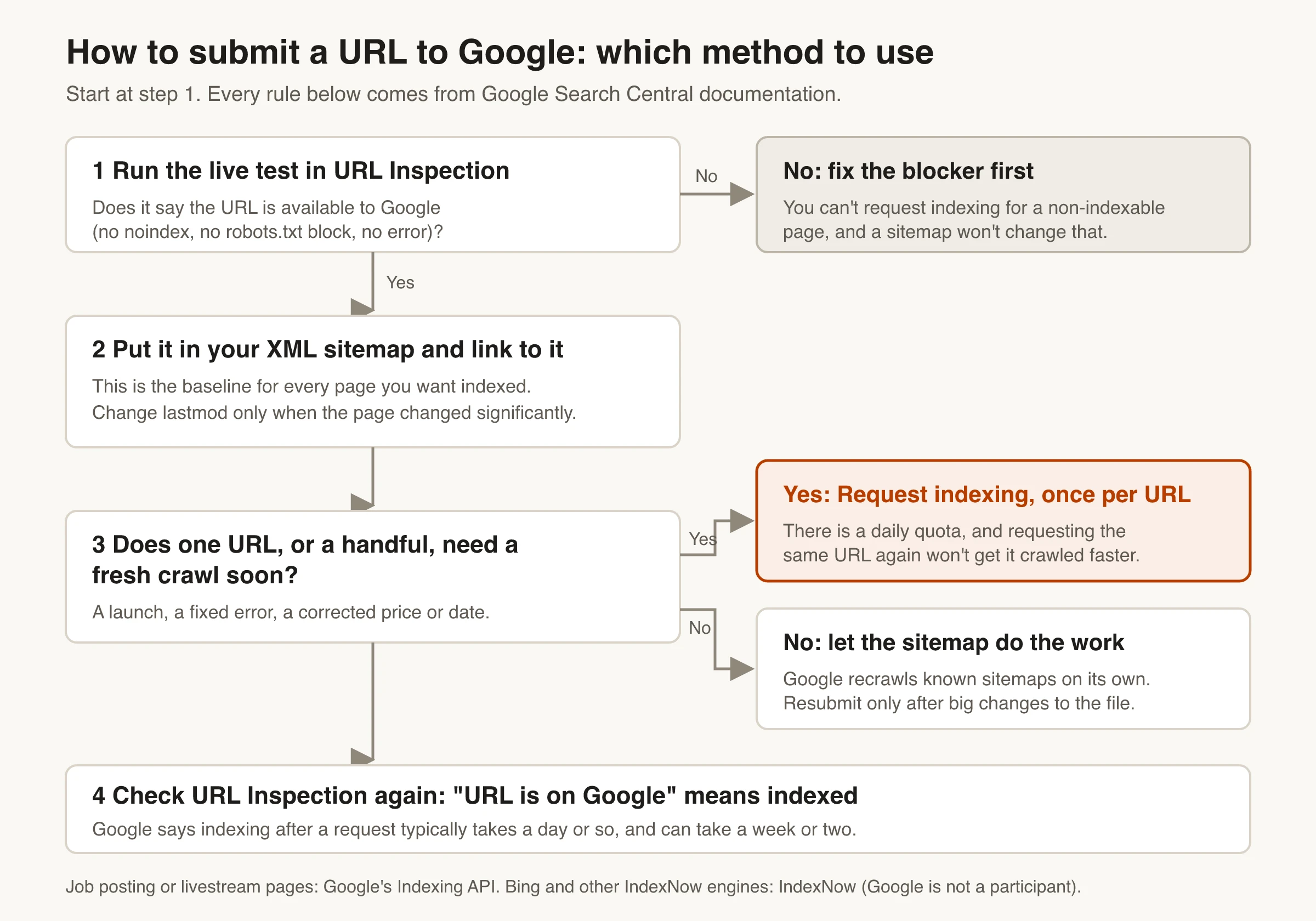
| Situation | What to do |
|---|---|
| Live test says the page isn’t indexable | Neither yet. Fix the noindex, robots.txt block, error or redirect first |
| New post on an established, well-linked site | Sitemap plus an internal link. No request needed |
| One page you just fixed, relaunched or corrected (price, date, error) | Confirm it’s in the sitemap with a fresh lastmod, then Request indexing once |
| New site or migration with many new URLs | Submit the sitemap or sitemap index. Request indexing only for the homepage and a few key pages |
| Hundreds of pages updated at once (template fix, price changes) | Update lastmod on the changed URLs and let the sitemap carry them. Resubmit only if the sitemap’s structure changed |
| Job posting or livestream video pages | Google’s Indexing API, plus the sitemap |
| You also want Bing and other engines to pick it up fast | Add IndexNow. It has no effect on Google |
What about IndexNow and Google’s Indexing API?
Both get recommended as ways to get indexed faster. Neither is a general-purpose way to submit pages to Google.
IndexNow works for Bing, not Google
IndexNow is an open protocol for telling search engines that a URL was added, updated or deleted. The IndexNow FAQ lists the participating endpoints as Amazon, Bing, Naver, Seznam.cz, Yandex and Yep, and a submission to one is shared with all IndexNow-enabled engines. Google isn’t a participant, and its own recrawl guide lists only URL Inspection and sitemaps. Sending IndexNow pings is worth doing for Bing and the others, but it doesn’t change when Google crawls your page.
Skribra is one example: it pings IndexNow when it publishes an article. That reaches Bing and the other participating engines. Google still finds the article through your sitemap and internal links.
The Indexing API is only for job postings and livestreams
Google’s Indexing API lets a site notify Google directly when a page is added or removed, but Google’s Indexing API documentation restricts it to pages with JobPosting structured data, or BroadcastEvent embedded in a VideoObject. It isn’t meant for blog posts, product pages or landing pages. If a tool offers to push hundreds of ordinary pages into Google every day, check which API it uses before you connect it to your site. For everything else, the sitemap is the scalable route.
How to check if Google indexed your URL
Run this check a day or two after a request, or whenever a submitted page still isn’t showing up. It tells you whether the problem is discovery, crawling, canonical selection or Google’s decision not to index.
- Inspect the exact URL. At the top of URL Inspection, “URL is on Google” means the page is indexed and eligible to appear in results. Google notes that this still doesn’t guarantee it will appear for any given search. “URL is not on Google” means it can’t appear. For a definitive check that it’s showing, Google suggests searching for the page’s URL on Google.
- Check how Google found it. Expand Page indexing. The Sitemaps field lists the submitted or robots.txt sitemaps that include the URL, and “No referring sitemap” means Google couldn’t find one. The Referring page field shows a page Google may have used to discover it. If both are empty, add the URL to your sitemap and link to it from a page that’s already indexed.
- Compare canonicals. If the Google-selected canonical differs from the user-declared one, Google is indexing another URL in its place. Requesting indexing again won’t change that. Fixing duplicate content and conflicting canonical signals will.
- Read the status reason. “Discovered – currently not indexed,” “Crawled – currently not indexed,” “Excluded by ‘noindex’ tag” and the redirect and error statuses each need a different fix. Each one is covered in CMS SEO pages not indexing: debug the usual causes.
- Check at scale through the sitemap. Filter the Page indexing report by sitemap to see how many URLs in a given sitemap are indexed. That’s the quickest way to spot a whole section of the site that isn’t getting in.
A Submission Routine That Doesn't Waste Requests
Put every new or updated page in your sitemap with an honest lastmod and link to it from a page Google already indexes. That covers most of your URLs without any clicking. Save Request indexing for the few pages that genuinely can’t wait, run the live test first, and request each one once. A week after a launch or migration, check the Sitemaps report status and the Page indexing report filtered by sitemap, and fix whatever the status reasons point to.
Stop re-requesting the same URL every day, stamping every URL with today’s date, and relying on the old ping endpoint or IndexNow to reach Google. For how indexing fits with content, links and the rest of SEO, see our SEO guide.
Frequently Asked Questions
- How do I submit a URL to Google?
- In Google Search Console, paste the URL into the URL Inspection tool and click Request indexing. For more than a few pages, submit an XML sitemap in the Sitemaps report instead. You need to be an owner or full user of the property, and Google still decides whether to index the page.
- How long does Google take to index a page after Request indexing?
- Google says indexing typically takes a day or so, but can take up to a week or two, and there is no guarantee the page will be indexed at all. Requesting the same URL again won't speed it up. Check progress in the URL Inspection tool.
- How many URLs can I request indexing for per day?
- Google says there is a daily limit but doesn't publish the number for the Search Console interface. The 2,000-per-day figure you may see is the quota for the URL Inspection API, which reads inspection data and can't request indexing. If you need many pages crawled, use a sitemap.
- Do I need to resubmit my sitemap every time I publish?
- No. Once Google has read your sitemap, it recrawls it on its own schedule. Add the new URL with an accurate lastmod date and let Google pick it up. Resubmit only after big changes to the sitemap's structure, or after fixing an error.
- Does Google support IndexNow?
- No. IndexNow's participating search engines are Amazon, Bing, Naver, Seznam.cz, Yandex and Yep. Google isn't one of them. Use IndexNow for those engines, and use sitemaps and URL Inspection for Google.
- Should I update lastmod every time I edit a page?
- Only for significant changes, such as rewritten main content, changed structured data or changed links. Google uses lastmod only when it's consistently accurate, so updating it for trivial edits, or setting every URL to today's date, teaches Google to ignore it.
Know Which Posts Google Has Indexed
Submitting is half the job. The other half is seeing which pages actually made it in. Skribra plans, writes and publishes SEO articles to your site and pings IndexNow when each one goes live. With Search Console connected, it shows every article’s indexing status and last crawl date next to its clicks, impressions and position.
Plans start at $19/month for 5 articles, and every plan comes with a 3-day free trial.
Written by
Skribra
This article was crafted with AI-powered content generation. Skribra creates SEO-optimized articles that rank.
Share: