March 28, 2026
·
Updated October 28, 2026
·
15 min read
How to Track SEO Traffic in GA4 (Step-by-Step)
GA4 SEO tracking takes five steps: install one Google tag with consent mode, link Search Console and publish its reports, mark the events that matter as key events, keep organic visits classified as Organic Search, then read them in Traffic acquisition, the Landing page report and a free-form exploration. This guide walks through each step with the menu labels Google Analytics uses today, plus the new AI Assistant channel for ChatGPT and Gemini referrals.

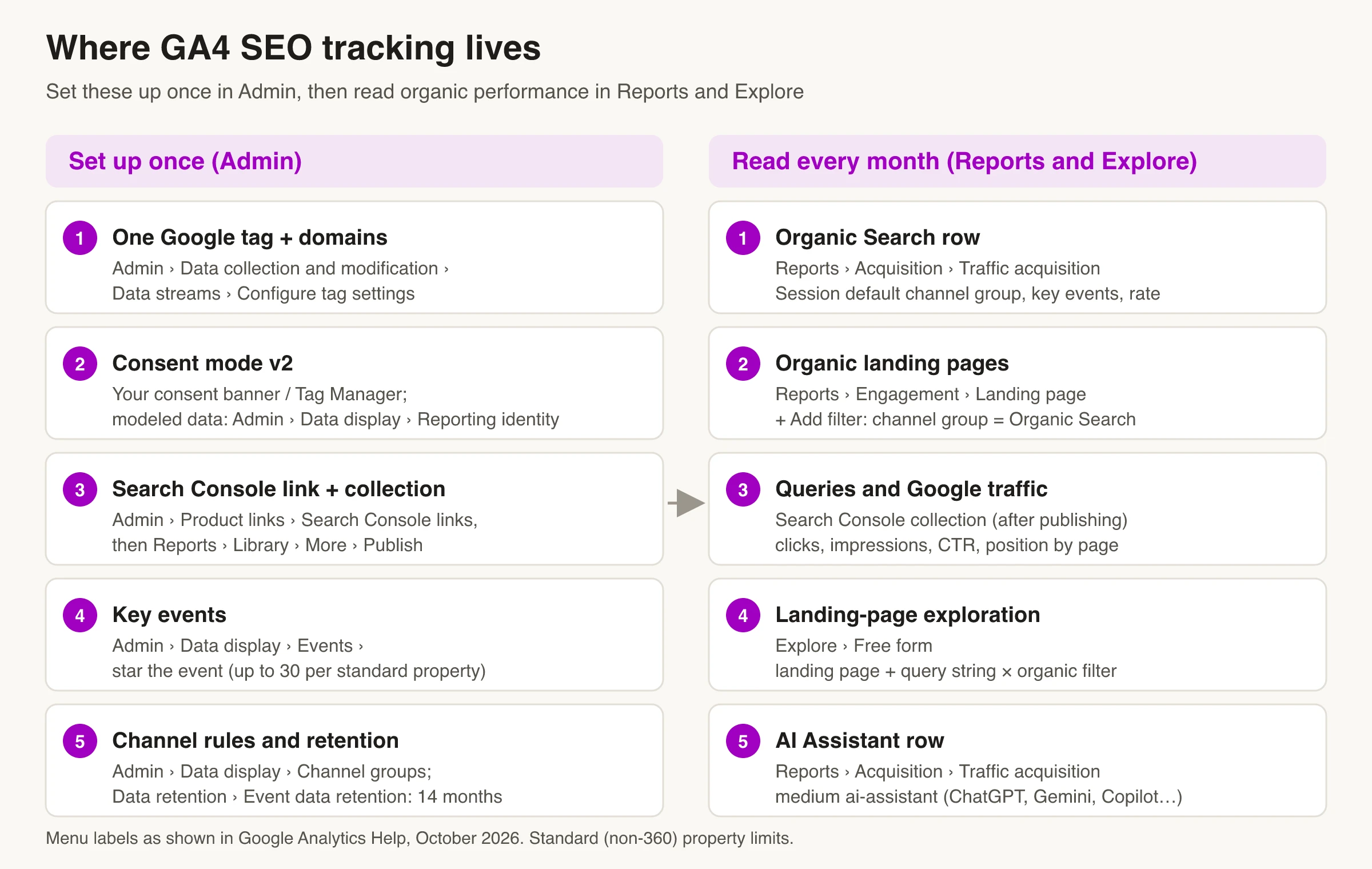
If your GA4 Organic Search numbers drift away from Search Console, or organic conversions drop to zero after a redesign, the cause is usually the setup, not your SEO. A second tag counts every page twice, a payment page steals the session as a referral, or nobody ever marked the signup event as a key event.
Every step below was checked against Google's own Google Analytics help pages in October 2026. By the end you'll have one report that shows organic traffic by landing page, what those visitors did, and which pages turned them into leads or sales.
What GA4 can and can’t tell you about SEO
GA4 measures what happens after the click: sessions, engagement, key events and revenue. Search Console measures what happens on Google’s results page: impressions, clicks, CTR and position. GA4 never sees the search query itself, so keyword data only reaches it through the Search Console link. The two tools will never agree exactly; the Search Console guide covers why the numbers differ.
Map each SEO question to one place in GA4 before you build anything:
| SEO question | Where to answer it in GA4 | What to look at |
|---|---|---|
| Is organic traffic growing? | Reports > Acquisition > Traffic acquisition | Sessions and engaged sessions on the Organic Search row, compared with the previous period |
| Which pages bring organic visitors? | Reports > Engagement > Landing page | Landing page filtered to Organic Search |
| Does organic traffic convert? | Traffic acquisition or Landing page | Key events and session key event rate |
| Which queries lead to which pages? | Search Console collection (after linking) | Queries; Google organic search traffic |
| Google vs Bing, device, country | Free-form exploration | Session source / medium, device category, country |
| How much traffic comes from AI assistants? | Traffic acquisition | The AI Assistant row |
You need the Editor role on the GA4 property for almost every setup step below, and verified ownership of the Search Console property for the link.
Step 1: Install one Google tag and keep sessions intact
The goal: one tag per page, one session per visit, and enough history to compare this quarter with the last.
Add the tag once
Create a web data stream in Admin > Data collection and modification > Data streams and copy its tag ID (it starts with G-). Then install it one way only:
- Google Tag Manager: add a tag of type Google tag, paste the ID into the Tag ID field, and fire it on the Initialization - All pages trigger, which Google recommends so the tag loads before other triggers (Tag Manager help). Click Submit to publish.
- CMS plugin or hard-coded gtag.js: fine for small sites, but don’t combine it with Tag Manager.
Themes, SEO plugins and site builders often add their own GA tag. Two tags on the same page means two page_view events per load, which inflates sessions and drags down engagement rate. Search the page source for your G- ID before and after setup.
Cross-domain and unwanted referrals
If visitors move between your own domains (a blog on one domain, an app or checkout on another), GA4 starts a new session on the second domain and credits it to your first domain as a referral. The organic visit that started the journey loses the conversion.
- Cross-domain: in the web stream, click Configure tag settings > Configure your domains and add every domain. GA4 then passes the IDs between them in a
_glURL parameter, so it counts one user and one session (cross-domain help). - Unwanted referrals: in the same Configure tag settings screen, click Show all > List unwanted referrals and add third-party domains people pass through and return from, such as payment processors or a login provider. Matching visits get
ignore_referrer=true, so the return trip doesn’t replace the organic source. A stream can hold up to 50 of these (unwanted referrals help).
If your payment provider shows up as a top referrer in Traffic acquisition, this step is missing.
Check it in DebugView
Before trusting any report, watch your own visit arrive:
- Open the site with Tag Assistant or Tag Manager Preview mode, which turns on debug mode for your browser.
- In GA4, open Admin > Data display > DebugView and load a few page templates (home, blog post, product or pricing page).
- Confirm one
page_viewper page load and one event per action you plan to mark as a key event. - Walk the cross-domain journey once and confirm the session continues.
If you use consent mode and decline the banner, your test events may not show in DebugView, so accept it while testing.
Keep 14 months of data for Explorations
Standard reports aren’t affected by data retention, but Explorations and funnel reports are. A new property keeps two months of event data by default (Explorations help), which makes a year-over-year organic exploration impossible. In Admin, open Data retention, set Event data retention to 14 months (the maximum for standard properties), and click Save. The change takes effect after 24 hours, and properties Google classes as Large are limited to 2 months. Increasing the period applies to data you’ve already collected and haven’t lost yet (data retention help), so do it on day one.
Step 2: Set up consent mode v2
Consent decides how much organic traffic GA4 can see. If a banner blocks the tag until someone clicks Accept, the visitors who decline never appear, and organic looks smaller in GA4 than in Search Console.
Consent mode passes the visitor’s choice to Google tags through four main parameters (Google’s consent mode reference):
| Parameter | Controls |
|---|---|
analytics_storage |
Analytics cookies, such as visit duration |
ad_storage |
Advertising cookies |
ad_user_data |
Sending user data to Google for advertising |
ad_personalization |
Personalized advertising |
The last two were added in version 2. For visitors in the European Economic Area, Google requires you to collect consent and pass those choices to Google when you measure them with Google tags (Google Ads help).
There are two ways to implement it:
- Basic: tags don’t load until the visitor interacts with the banner. No data reaches Google before that, not even the consent status.
- Advanced: tags load immediately with consent set to denied by default, and send cookieless pings while consent is denied.
Only advanced mode can fill the gap. GA4’s behavioral modeling can estimate users and sessions from declined visits when a property collects at least 1,000 events a day with analytics_storage denied for 7 days, and has at least 1,000 daily users with it granted on 7 of the previous 28 days. Meeting those thresholds doesn’t guarantee the model will train. To see modeled numbers, choose Blended under Admin > Data display > Reporting identity (behavioral modeling help). Whether advanced mode suits your site is a legal call as much as a measurement one.
Step 3: Link Search Console and publish its reports
The link brings Search Console’s queries, clicks, impressions, CTR and position into GA4, next to engagement and key events. The linking steps, the one-to-one rule and the history limits are covered in the Search Console setup guide; the short version is Admin > Product links > Search Console links > Link, pick the property you own, then pick the matching web stream.
The step most people miss comes after linking. The Search Console collection is unpublished by default (Analytics help), so the reports don’t appear in the left menu until you publish them:
- In Reports, click Library at the bottom of the left navigation. Only Administrators and Editors see it (report navigation help).
- Find the Search Console collection card.
- Click More on the card, then Publish.
The collection then appears in Reports for everyone on the property, with two reports:
- Queries (Google Organic Search Queries): the search terms that showed your site, with Search Console metrics. You can drill down only by Search Console dimensions.
- Google organic search traffic: landing pages with Search Console metrics and GA4 metrics side by side, by country and device.
Three limits to plan around: Search Console metrics only combine with Search Console dimensions plus Landing page, Device and Country; data arrives 48 hours after Search Console collects it; and history stops at 16 months.
Step 4: Mark SEO outcomes as key events
A key event is an event you flag as important to the business; it’s what GA4 used to call a conversion. Without key events, every organic report shows traffic and nothing it produced, and the Key events column stays at zero.
Pick a short list
Choose the outcomes someone actually follows up on:
- Lead or contact form submitted (
generate_lead) - Signup or account created (
sign_up) - Purchase completed (
purchase) - Demo or quote requested
- Click on a phone number or email address, if those are real sales channels for you
A standard property can have up to 30 key events, but a handful is easier to read. The organic conversion rate you report should rest on events that mean the same thing every month.
Mark the event in Admin
For an event GA4 already collects (key events help):
- Go to Admin > Data display > Events.
- In the Recent events tab, find the event.
- Click the star next to it.
For an event that doesn’t exist yet, click + Create event on the same page, name it, turn on Mark as key event, choose a default value and counting method, and click Create. Once per event is the recommended counting method; Once per session is the legacy option.
Marking isn’t retroactive. It only affects data from that point on, and standard reports can take up to 24 hours to reflect the change. Then trigger the action yourself and confirm it in DebugView.
Skip events that inflate organic conversion rates
Some events fire on almost every visit and make organic look better than it is:
page_view,scrollor time-on-page milestones- Chat widget opens
- Newsletter popup closes
- Clicks on internal tools or navigation
Engagement already has its own metric. A session counts as engaged if it lasts 10 seconds or longer, has a key event, or has two or more page views, and bounce rate in GA4 is simply the share of sessions that weren’t engaged.
Step 5: Keep organic traffic classified as Organic Search
GA4 sorts every session into a channel using rule-based definitions. Google’s definition of Organic Search is: the source matches its list of search sites, or the medium exactly matches organic (default channel group help). The rules that most often pull organic visits into other channels:
| Channel | Rule (simplified) | How organic ends up here |
|---|---|---|
| Organic Search | Source is on Google’s search-sites list, or medium = organic |
Correct home for Google, Bing and other listed engines |
| Referral | Medium is referral, app or link |
Self-referrals from your other domains; payment or login pages |
| Direct | Source = (direct) and medium = (none) or (not set) |
Visits that arrive with no referrer and no UTM tags |
| Email, Organic Social, etc. | Source or medium match that channel | A UTM tag added to an SEO URL overrides the real source |
| Unassigned | No rule matches | Made-up utm_medium values that no rule recognizes |
Google publishes the full list of search sources as a downloadable spreadsheet on the same help page.
UTM rules that protect organic
UTM parameters override whatever GA4 would have detected, so use them only when you mean to replace the source:
- Leave the URLs you want to rank untagged, including in sitemaps, canonicals and internal links.
- Never add UTMs to internal links. Each click would start a new campaign source mid-visit.
- Tag real campaigns (newsletters, partners, ads) with consistent lowercase values, such as
utm_medium=email. - Don’t invent mediums. Anything outside the channel rules lands in Unassigned.
When to add a custom channel group
If the default rules don’t fit, create your own under Admin > Data display > Channel groups (custom channel groups help). Before you do:
- A standard property gets two custom groups, each with up to 50 channels, on top of the default group.
- Custom groups apply to your reports retroactively.
- Order matters: a session goes into the first channel whose rules it matches.
- You can make a custom group the property’s primary channel group, which then becomes the default in reports. Data uses the new rules from that point forward.
A common SEO use is a channel for AI assistants missing from GA4’s own list (see below).
Where to find organic traffic in GA4
Three reports cover most SEO questions. Compare a full period with the previous one (last 28 days vs the 28 before) rather than reading single totals.
Traffic acquisition: the Organic Search row
Go to Reports > Acquisition > Traffic acquisition. The table groups sessions by Session default channel group, and its columns include sessions, engaged sessions, engagement rate, key events, session key event rate and total revenue (Traffic acquisition help). Read the Organic Search row:
- Sessions and engaged sessions: volume and quality.
- Key events shows outcomes. Use the drop-down on the column header to pick a single key event, such as
generate_lead, instead of all of them. - Session key event rate is the share of organic sessions with at least one key event.
To split organic by engine, type organic into the search bar above the table and change the primary dimension to Session source / medium; you’ll see rows like google / organic and bing / organic.
Landing page report filtered to organic
Go to Reports > Engagement > Landing page. Landing page is the page path and query string of the first page view in a session, and the report shows sessions, active users, new users, average engagement time, key events and revenue per page (Landing page help). It covers every channel, so filter it:
- Click + Add filter at the top of the report.
- Choose Session default channel group, select Organic Search, and click OK, then Apply.
- Sort by sessions to see your top organic entry pages, or by key events to see which ones convert.
A (not set) row means sessions GA4 recorded without a page view, so it has no first page to report. Because the dimension includes query strings, one page can appear as several rows; Explorations let you work around that (next section).
This walkthrough from Analytics Mania shows these reports in the GA4 interface. It was recorded in June 2023, before Google renamed conversions to key events, so a few labels differ from today’s:
Search Console reports for queries
Once the collection is published, Google organic search traffic is the closest GA4 gets to a single SEO report: each landing page with its Google clicks, impressions, CTR and position next to engagement and key events. Use Queries to see which searches show your pages, then open Search Console itself for filters and comparisons GA4 doesn’t offer. Search Console is also where you check keyword rankings for free.
For which of these numbers belong in a monthly report, see the SEO KPIs worth tracking.
Build an organic landing-page exploration
Standard reports are fixed; an exploration lets you combine dimensions freely and save the view. This recipe gives you an organic landing-page table you can reopen every month:
- Click Explore in the left menu and choose Free form.
- Under Dimensions, click + and import Landing page + query string, Session default channel group, Session source / medium and Device category.
- Under Metrics, import Sessions, Engaged sessions, Engagement rate, Key events, Session key event rate and Total revenue.
- Drag Landing page + query string into Rows and the metrics into Values.
- Under Filters, add Session default channel group exactly matches Organic Search.
- Optional: drag Session source / medium or Device category into Columns to compare Google with Bing, or mobile with desktop.
- Name the exploration and set a preset range such as Last 28 days, which rolls forward each time you open it.
Limits from Google’s Explorations help: explorations are private until you share them (shared ones are read-only for viewers), they may use sampled data when a query covers more than 10 million events, and they can only reach as far back as your data retention setting allows.
High organic sessions with a low key event rate point to a weak call to action; falling sessions point to a refresh. Check the page’s queries in Search Console before rewriting.
Track AI referral traffic next to organic search
Since May 13, 2026, GA4 has a built-in AI Assistant channel in the default channel group (What’s new in Analytics). When the referrer matches Google’s list of AI assistants, GA4 sets the medium to ai-assistant and the campaign to (ai-assistant), and a medium of exactly ai-assistant also lands there. Google’s examples are ChatGPT, Gemini, DeepSeek, Copilot and Grok (default channel group help). You’ll find it as its own row in Traffic acquisition, with no setup.
Three things to know when you read it next to Organic Search:
- AI Overviews and AI Mode are not in it. Google excludes its own AI features from the AI Assistant channel, so clicks from them arrive as
google / organicand count as Organic Search. Search Console has a separate report for AI-feature impressions, covered in the Search Console guide linked above. - The list isn’t published in full. Google’s May 2026 announcement names ChatGPT, Gemini and Claude, and the channel page adds DeepSeek, Copilot and Grok; Perplexity isn’t named in either. Check Traffic acquisition with Session source / medium for
perplexity.aior any other assistant still showing up as a referral. - It only exists from May 2026. For earlier months, look for assistant domains under Referral before comparing year over year.
If assistants you care about still land in Referral, add a channel to a custom channel group: name it “AI assistants”, add a condition on Source that matches regex, for example chatgpt|openai|perplexity|claude\.ai|gemini|copilot|deepseek|grok, and move it above Referral. Google’s own custom channel group example makes the same point about order. Visits with no referrer at all, such as a link copied from an assistant into a new tab, will still show as Direct.
With tracking in place, you can measure whether an AI SEO tool is adding traffic instead of taking the vendor’s word for it.
A monthly GA4 SEO check
Once the setup is in place, the routine takes about 20 minutes a month:
- Traffic acquisition: compare Organic Search and AI Assistant sessions, key events and key event rate with the previous period.
- Landing page (organic filter): note the top entry pages that grew or fell, and the ones with traffic but no key events.
- Search Console reports: check clicks and position for the pages that moved, to tell a ranking change from a demand change.
- Data health: look for your own domains or payment providers in referrals, new Unassigned traffic, and duplicate events in DebugView after any site release.
- Act on one page: refresh a page that’s falling or improve the call to action on a page that gets traffic but doesn’t convert.
For the rest of the strategy behind those numbers, the Skribra SEO guide covers how content, technical SEO and links fit together, and these Search Console mistakes are worth ruling out when organic data looks wrong.
Frequently Asked Questions
- Why doesn't GA4 organic traffic match Search Console clicks?
- They count different things. Search Console counts clicks on Google's results, while GA4 counts sessions on your site from every search engine, and only when the tag loads and the visitor's consent allows it. Compare trends over the same date range rather than expecting the totals to match.
- Can I see SEO keywords in GA4?
- Not from GA4's own data, because search engines don't pass the query to your site. Link Search Console and publish its collection in the Library, then use the Queries report to see the searches that showed your pages.
- Why can't I find the Search Console reports in GA4 after linking?
- The Search Console collection is unpublished by default. An Administrator or Editor has to open Reports, click Library at the bottom of the left navigation, and choose More, then Publish on the Search Console card. Data also takes about 48 hours to arrive.
- Is traffic from ChatGPT or AI Overviews counted as organic search in GA4?
- ChatGPT, Gemini, Copilot and other recognized assistants go to the AI Assistant channel, which GA4 added in May 2026. Clicks from Google's AI Overviews and AI Mode are excluded from that channel and count as Organic Search with google / organic as the source and medium.
- How do I see conversions from organic search in GA4?
- First mark the events that matter as key events in Admin under Data display, Events. Then open Traffic acquisition and read the Key events and Session key event rate columns on the Organic Search row, or filter the Landing page report to Organic Search to see conversions per page.
- How far back can I analyze organic traffic in GA4?
- Standard reports aren't limited by data retention. Explorations are: they can only reach as far back as the retention setting, which starts at two months and goes up to 14 months on standard properties. Search Console data inside GA4 covers at most 16 months.
See Search Console Data for Every Article
GA4 shows what organic visitors do after they land. Skribra covers the other side for the articles it publishes: it connects to Google Search Console and shows clicks, impressions, CTR, average position and indexing status per article, with up to 16 months of history. Its agents use that data to decide which articles to refresh next.
Plans start at $19/month, and every plan comes with a 3-day free trial.
Written by
Skribra
This article was crafted with AI-powered content generation. Skribra creates SEO-optimized articles that rank.
Share: